2021 Graphics & GamesSpatial Computing
WWDC21 · 20 min · Graphics & Games / Spatial Computing
Explore ARKit 5
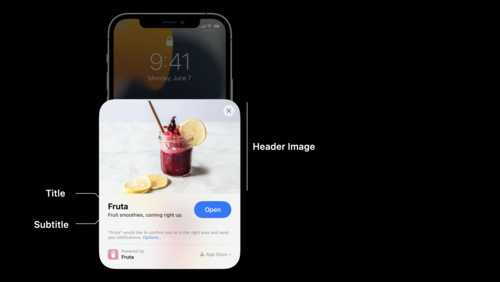
Build the next generation of augmented reality apps with ARKit 5. Explore how you can use Location Anchors in additional regions and more easily onboard people into your location-based AR experience. Learn more about Face Tracking and Motion Capture. And discover best practices for placing your AR content in the real world. We’ll also show you how you can integrate App Clip Codes into your AR app for easy discovery and precise positioning of your virtual content.
Watch at developer.apple.com ↗Code shown on screen · 9 snippets
Geo Tracking Recap I
// Check device support for geo-tracking
guard ARGeoTrackingConfiguration.isSupported else {
    // Geo-tracking not supported on this device
    return
}

// Check current location is supported for geo-tracking
ARGeoTrackingConfiguration.checkAvailability { (available, error) in
    guard available else {
        // Geo-tracking is not available at this location
        return
    }

    // Run ARSession
    let arView = ARView()
    arView.session.run(ARGeoTrackingConfiguration())
}
Geo Tracking Recap II
// Create Location Anchor and add to session
let coordinate = CLLocationCoordinate2D(latitude: 37.795313, longitude: -122.393792)
let geoAnchor = ARGeoAnchor(name: “Ferry Building”, coordinate: coordinate)
arView.session.add(anchor: geoAnchor)

// Monitor geo-tracking status updates
func session(_ session: ARSession, didChange geoTrackingStatus: ARGeoTrackingStatus) {
    …
}
Geo Tracking Coaching Overlay
// Declare coaching view
let coachingOverlay = ARCoachingOverlayView()

// Set up coaching view (assuming ARView already exists)
coachingOverlay.session = self.arView.session
coachingOverlay.delegate = self
coachingOverlay.goal = .geoTracking

coachingOverlay.translatesAutoresizingMaskIntoConstraints = false
self.arView.addSubview(coachingOverlay)

NSLayoutConstraint.activate([
    coachingOverlay.centerXAnchor.constraint(equalTo: view.centerXAnchor),
    coachingOverlay.centerYAnchor.constraint(equalTo: view.centerYAnchor),
    coachingOverlay.widthAnchor.constraint(equalTo: view.widthAnchor),
    coachingOverlay.heightAnchor.constraint(equalTo: view.heightAnchor),
])
GeoTracking Distance Method
// Method to compute distance (in meters) between points
func distance(from location: CLLocation) -> CLLocationDistance
App Clip Code: check device support
func viewDidLoad() {
    // Check device support for app clip code tracking
    guard ARWorldTrackingConfiguration.supportsAppClipCodeTracking else { return }

    let worldConfig = ARWorldTrackingConfiguration()
    worldConfig.appClipCodeTrackingEnabled = true
    arSession.run(worldConfig)
}
Accessing the URL of an App Clip Code
/// Accessing the URL of an App Clip Code
override func session(_ session: ARSession, didUpdate anchors: [ARAnchor]) {
    for anchor in anchors {
        guard let appClipCodeAnchor = anchor as? ARAppClipCodeAnchor, appClipCodeAnchor.isTracked else { return }

        switch appClipCodeAnchor.urlDecodingState {
        case .decoding:
            displayPlaceholderVisualizationOnTopOf(anchor: appClipCodeAnchor)
        case .failed:
            displayNoURLErrorMessageOnTopOf(anchor: appClipCodeAnchor)
        case .decoded:
            let url = appClipCodeAnchor.url!
            let anchorEntity = AnchorEntity(anchor: appClipCodeAnchor)
            arView.scene.addAnchor(anchorEntity)
            let visualization = AppClipCodeVisualization(url: url, radius: appClipCodeAnchor.radius)
            anchorEntity.addChild(visualization)
          }
    }
}
Adding a gesture recognizer
/// Adding a gesture recognizer for user interaction
func viewDidLoad() {
    initializeARView()
    initializeCoachingOverlays()

    // Place sunflower on the ground when the user taps the screen
    let tapGestureRecognizer = UITapGestureRecognizer(
     target: self,
     action: #selector(handleTap(recognizer:)))
    arView.addGestureRecognizer(tapGestureRecognizer)
}
Tap to place the sunflower
func handleTap(recognizer: UITapGestureRecognizer) {
    let location = recognizer.location(in: arView)
    // Attempt to find a 3D location on a horizontal
    // surface underneath the user's touch location.
    let results = arView.raycast(
      from: location,
      allowing: .estimatedPlane,
      alignment: .horizontal)
    guard let firstResult = results.first else { return }
    // Fetch the last decoded app clip code URL
    guard let appClipCodeURL = decodedURLs.last else { return }
    // Add an ARAnchor & AnchorEntity at the touch location
    let anchor = ARAnchor(transform: firstResult.worldTransform)
    arView.session.add(anchor: anchor)
    let anchorEntity = AnchorEntity(anchor: anchor)
    arView.scene.addAnchor(anchorEntity)
    // Download the 3D model associated with this app clip code.
    downloadAndDisplay(appClipCodeURL, on: anchorEntity)
}
Checking for supported video formats for face tracking
// Check if the ultra wide video format is available.
// If so, set it on a face tracking configuration & run the session with that.

let config = ARFaceTrackingConfiguration()
for videoFormat in ARFaceTrackingConfiguration.supportedVideoFormats {
    if videoFormat.captureDeviceType == .builtInUltraWideCamera {
        config.videoFormat = videoFormat
        break
    }
}
session.run(config)
Resources
Related sessions
-
 19 min
 -
 16 min
 -
 30 min
 -
 25 min
 -
 28 min
 -
 39 min